Panel nesting software: how sheet optimization works
Updated: Cutting plans5 min readBy moducut team
Summarize this article with an AI tool:
Short answer
Where does waste come from?
Waste is the area of the sheet that is left unused. It comes from three places: parts laid out poorly on the sheet, the thickness of the saw blade, and the trim taken off the sheet edges. In hand-drawn plans the first item is the largest; because parts are lined up one after another, unusable strips are left at the end of the sheet.
Kerf and edge trim are unavoidable; with every cut, the saw or router bit removes material equal to its own thickness. Waste from the layout, however, depends on the plan. This is where optimization really pays off: when the same parts are arranged in a different order and orientation, the number of sheets can change.
How does sheet optimization work?
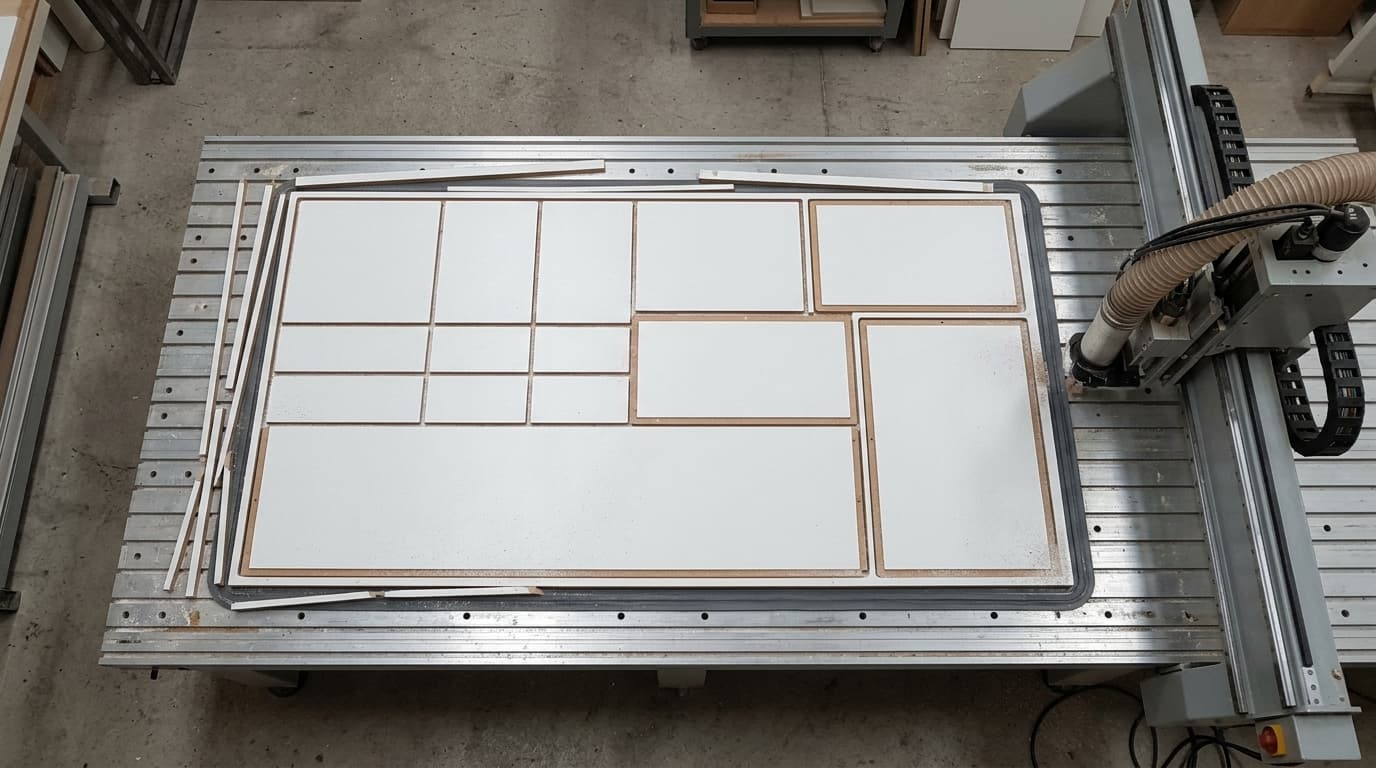
The optimization software sorts the parts by a rule (by length, width or area) and places them on the sheet one by one. If a part does not fit, it moves on to the next sheet. It repeats this many times with different orders and orientations, then picks the attempt that ends with the fewest sheets and the least waste.
When planning by hand, each of these attempts is a separate drawing on paper; in practice people stop after a few tries. Because software can repeat the same job many times in a short time, it finds layouts that are hard to find by hand, especially on jobs with many parts of different sizes.
What does optimization take into account?
- Kerf. Every cut removes material equal to the saw blade or bit thickness; the plan leaves this allowance between parts.
- Edge trim. Sheet edges do not always arrive straight and clean from the factory; the trim taken off the edge is part of the plan.
- Grain direction. On patterned boards, parts are not allowed to rotate; the plan keeps the grain direction.
- Banding allowance. Extra allowance can be left around a part for the edges that will be banded.
- Offcuts. If large offcuts left over from earlier jobs are filled first, a new sheet is opened later.
Guillotine cutting or CNC nesting?
The shape of the layout depends on what you cut the sheet with. A panel saw or sliding table saw cuts the sheet in straight lines from one edge to the other; this is called guillotine cutting. On these machines the plan also has to be a layout that follows the guillotine rule, split first into vertical or first into horizontal strips.
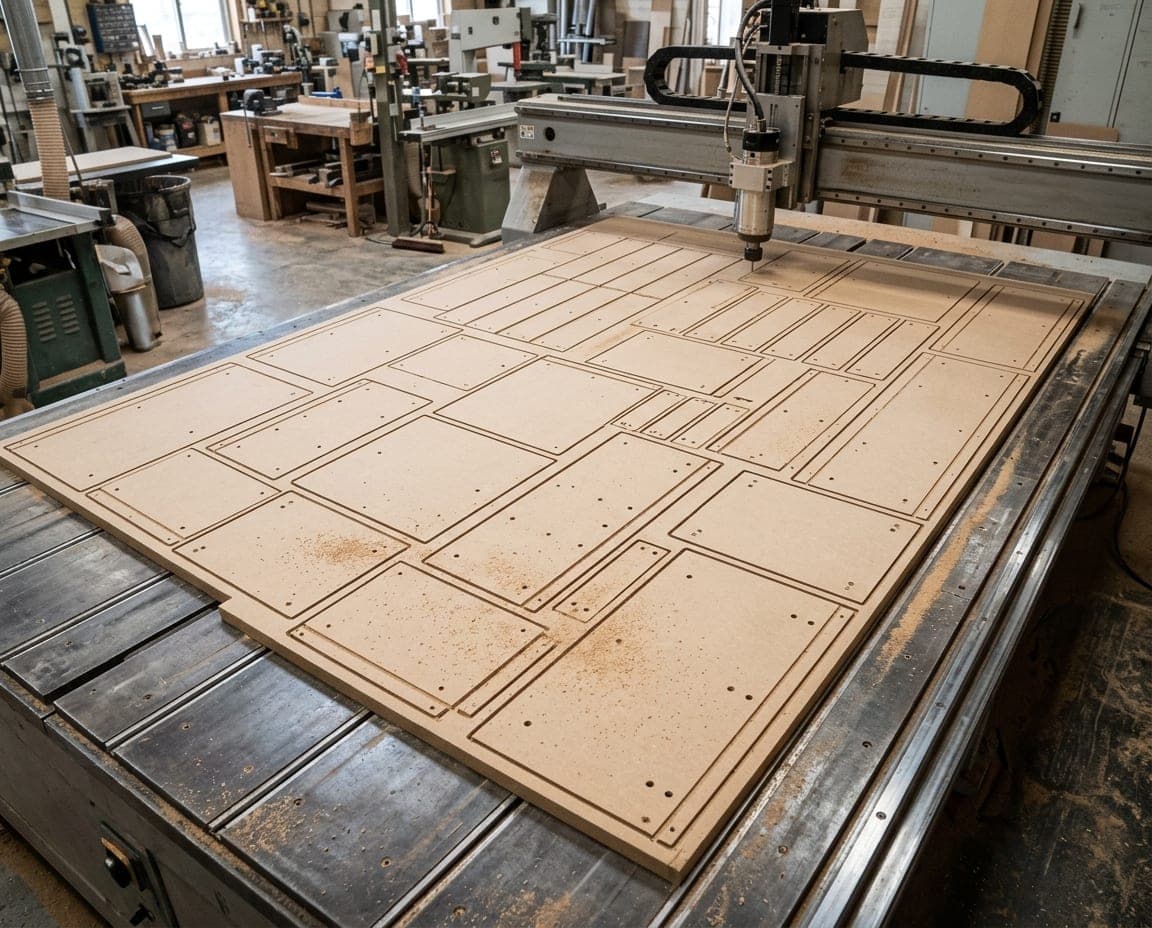
On a CNC router, the bit can follow any path inside the sheet. Parts are placed more freely, and the same parts list is often packed more tightly. On the other hand, the router bit is usually thicker than a saw blade, so the kerf grows accordingly. Which method ends with fewer sheets depends on the mix of parts.
How is the waste rate calculated?
The waste rate is the area left after subtracting the net area of the parts from the total area of the sheets used, divided by that sheet area. For example, if two 2100 × 2800 mm sheets are used for a job, the total area is 11.76 m². If the net area of the parts is 10.5 m², the remaining 1.26 m², about 10.7%, is waste.
This rate also includes kerf and edge trim; waste does not come from the layout alone. When comparing different layouts of the same parts list, looking at the number of sheets and the usable area left on the last sheet together gives a more accurate picture.
- 2100 × 2800 mm
- The most common melamine board size in Turkey
- 5.88 m²
- Total area of that sheet
- 6 mm
- Default kerf in moducut
- 7 mm
- Default sheet edge margin in moducut
Practical ways to reduce waste
- Enter the sheet size correctly: plan with the actual size your supplier sells, not an assumption.
- Set kerf and edge trim for your own machine; an allowance larger than needed takes material off the sheet with every cut.
- Lock grain direction only on the parts that need it; leaving hidden parts free gives the layout more room.
- Where possible, put parts cut from the same material into the same plan; the more part variety there is, the better the gaps fill.
- Record usable offcuts with their sizes and use them first on the next job.
How should offcuts be left?
Two plans with the same waste rate may not be worth the same to the shop. If a single, rectangular, wide offcut is left at the end of the sheet, it can be used on the next job as a shelf, plinth or drawer part. If the same area is left as narrow strips scattered around the sheet, it usually ends up in the bin.
That is why a good layout looks not only at waste but also at the shape of the offcut. Choices such as starting the parts from one corner of the sheet and gathering the remaining area along a single edge, or leaving the offcut as a strip along the long or short edge, decide whether the offcut can be reused.
Checklist before sending the cutting plan to production
- Sheet and material. Since a separate plan is produced for each material and thickness, make sure no part has been assigned to the wrong sheet.
- Allowances. Kerf should match the saw blade or router bit that will be used, and edge trim should match the condition of the sheet edges.
- Grain direction. Check that the grain is locked on doors and visible sides.
- Unplaced parts. If any part is larger than the sheet or could not be placed, it should show up as a warning in the plan.
- Output. Have the plan ready in the format the cutter or machine needs (printout, PDF, DXF or G-code).
Cutting plans in moducut
When the drawing is done, the parts go to the cut list, and the cut list goes to the cutting plan via Production › Nesting. In Nesting Settings you enter the kerf, edge margin and PVC allowance, and choose the placement method: CNC or guillotine (vertical first, horizontal first or mixed); you can also choose whether the offcut is left as a strip along the long edge or the short edge. Grain direction can be locked per part; this is also where you decide whether doors and back panels go on the same sheet as the carcass or on separate sheets.
Nesting Results show the yield and waste rate of each sheet, the total number of parts, the sheets used and the number of layouts tried. If an offcut large enough to keep is left on a sheet, it is listed under “Recovered offcuts”; once added to your offcut stock, the next nesting run fills those offcuts first. See the nesting page for details; for a rough estimate before ordering, you can also use the free sheet calculator.
Selected part
Frequently asked questions
Does nesting software really leave no waste?
It does leave waste; the goal is not to eliminate waste but to minimize it. The remaining area depends on the sheet size, part sizes and cutting settings.
Can the kerf be adjusted in the cutting plan?
Yes. You enter the kerf and edge trim for the saw or router you use; check the settings before going to production.
Is the cutting plan included in both plans?
Yes. Every feature is unlocked in both the 1-Year and the Lifetime plan; see the pricing page for details.